




![IM608 PRO II Full Kit<br>[2-Year Free Update]](http://www.obdprice.com/cdn/shop/files/Autel_IM608S_II_Full_Kit_1_600x600.webp?v=1755662636)

![IM508S PRO<br>[2-Year Free Update]](http://www.obdprice.com/cdn/shop/files/Autel_MaxiIM_IM508S_Pro_600x600.webp?v=1755662755)
![IM508S<br>[2-Year Free Update]](http://www.obdprice.com/cdn/shop/files/AUTEL_MAXIIM_IM508S_600x600.webp?v=1755662895)







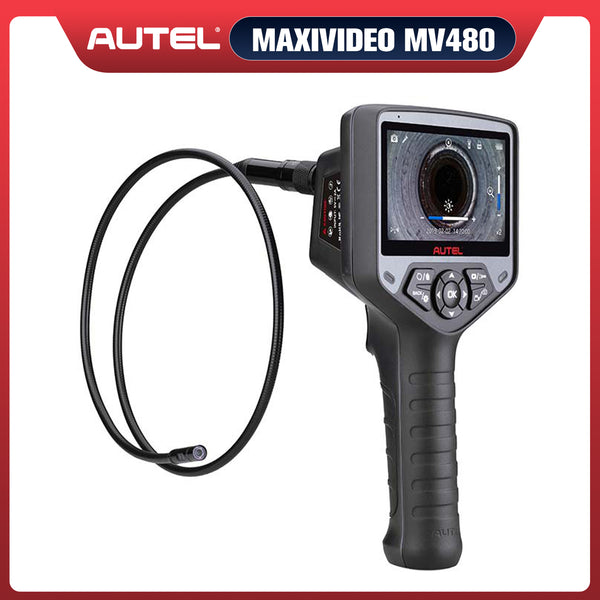

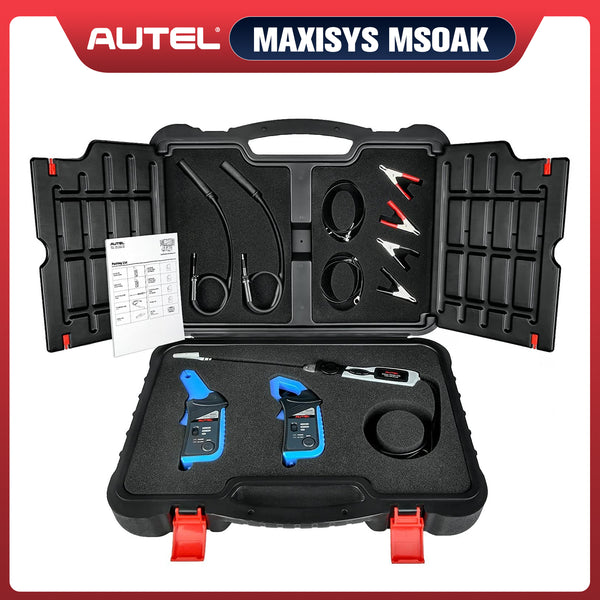
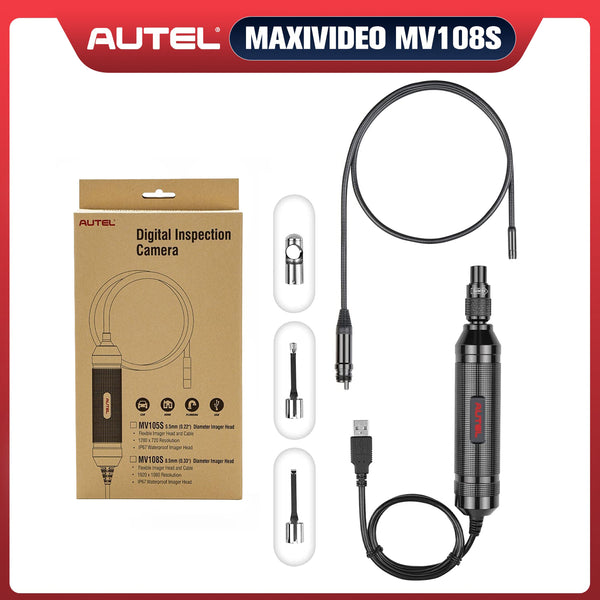
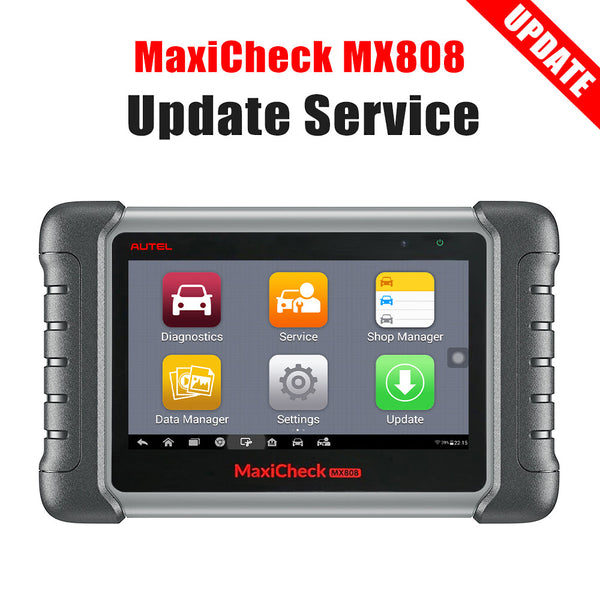
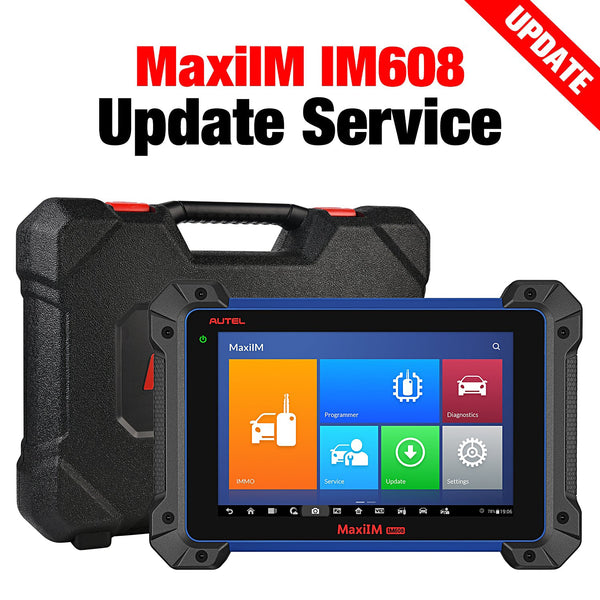
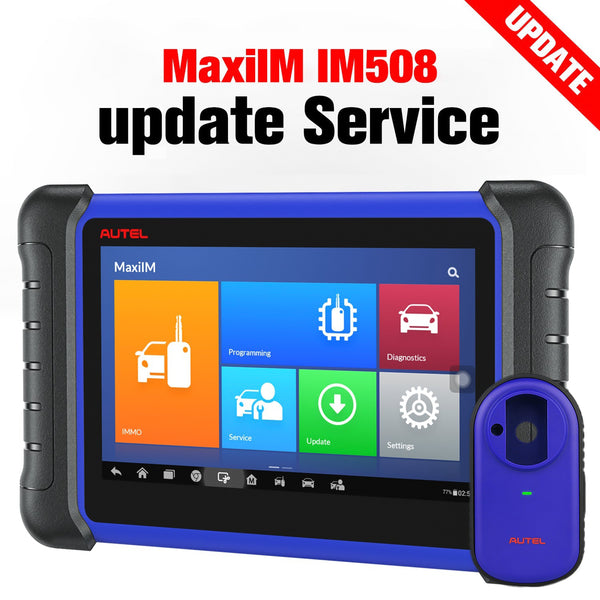
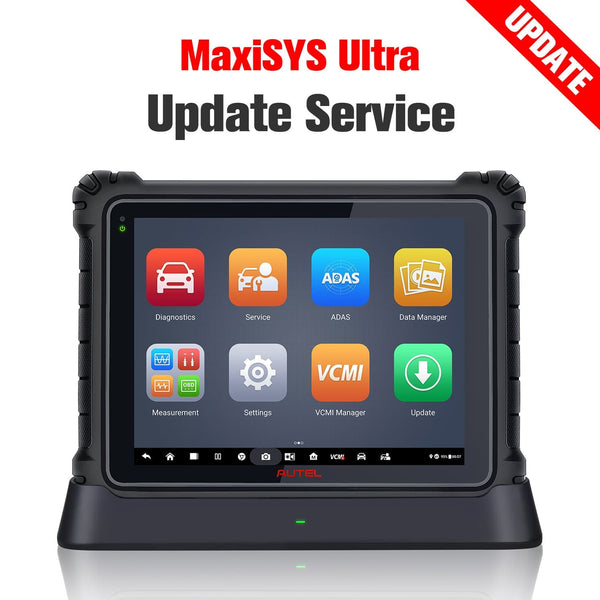
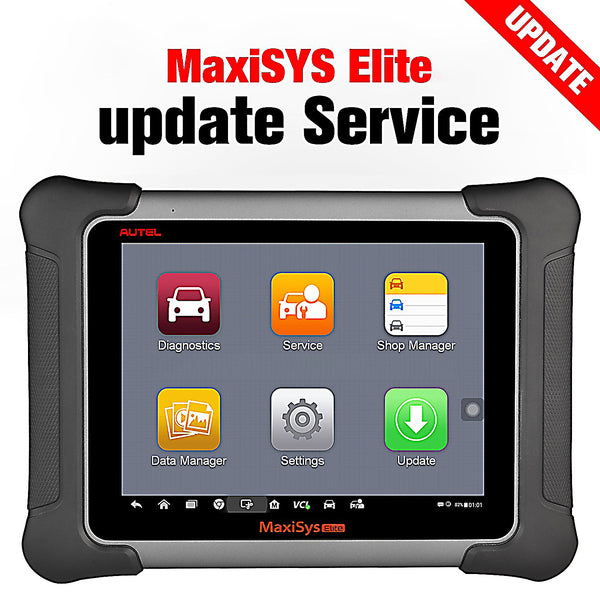
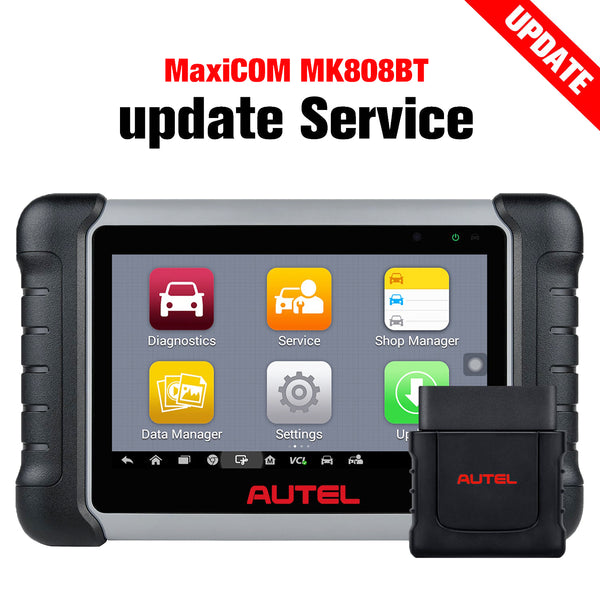
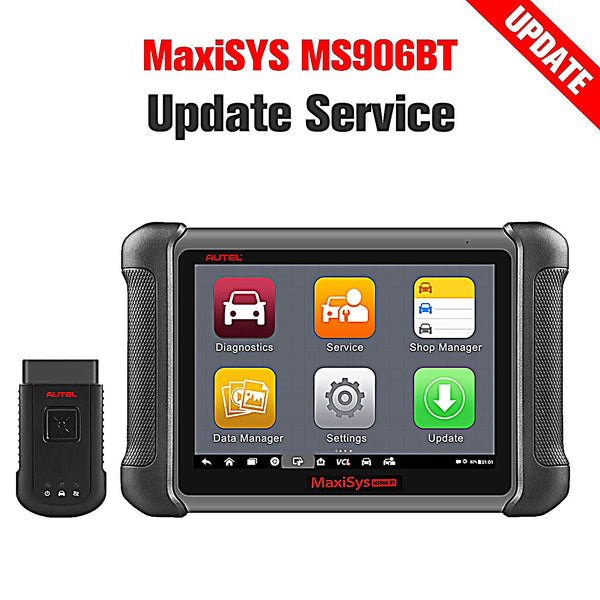


Autel diagnostic scanners rely on a stable internet connection for software updates, online services, vehicle database downloads, cloud functions, and account authentication. However, many users may encounter the Autel Network Busy Issue when trying to update software or access online features.
The error message usually indicates that the scanner cannot establish a stable connection with Autel servers or complete a network request. Although this problem is often temporary, it can also be caused by incorrect network settings, outdated software, unstable WiFi, or device-related issues.
This guide explains the common causes of the Autel scanner network busy error and provides step-by-step solutions to help you restore normal network functions.

What Does the Autel Network Busy Issue Mean?
The Autel Network Busy Issue appears when an Autel scanner fails to communicate properly with Autel's online services. Users may see messages such as:
- Network Busy
- Unable to connect to server
- Network error, please try again later
- Update failed due to network problems
This issue does not always mean that your internet connection is unavailable. In many cases, the scanner is connected to WiFi, but communication between the device and Autel servers is interrupted.
Common Causes of Autel Scanner Network Busy Error
1. Unstable WiFi Connection
A weak or unstable WiFi connection is one of the most common reasons behind Autel network problems. Autel scanners require a reliable internet connection when downloading large software packages or accessing cloud-based functions.
Common WiFi-related problems include:
- Weak wireless signal in the workshop
- Router connection interruptions
- Incorrect WiFi password
- Limited network bandwidth
2. Autel Server Maintenance or Temporary Outage
Sometimes the problem is not caused by your diagnostic tool. Autel servers may experience temporary maintenance, heavy traffic, or service interruptions.
When the server is unavailable, your scanner may display a network busy message even though your internet connection works correctly.
3. Outdated Autel Scanner Software
Running outdated firmware or system software can affect communication between your device and Autel online services.

Older software versions may have compatibility issues with updated servers, causing problems during:
- Software updates
- Vehicle database downloads
- Online account verification
- Cloud service access
4. Incorrect Network Settings
Incorrect network configurations can prevent your Autel scanner from connecting properly. Problems may include incorrect DNS settings, restricted router permissions, or improper date and time settings.
5. Device Cache or System Errors
Like smartphones and tablets, Autel scanners store temporary files and cached data. Corrupted cache files may interfere with network communication and cause connection errors.
How to Fix Autel Network Busy Issue Step by Step
Solution 1: Check Your Internet Connection
Before changing any settings on your Autel scanner, confirm that your WiFi connection is working properly.
- Connect another device, such as a smartphone or laptop, to the same WiFi network.
- Open a website to confirm internet access.
- If the connection is slow or unavailable, restart your router.
For better performance, place your Autel scanner closer to the router or use a more stable network connection.

Solution 2: Restart Your Autel Scanner and Router
A simple restart can often resolve temporary network communication errors.
- Turn off your Autel diagnostic scanner.
- Disconnect your WiFi router power supply for about 30 seconds.
- Restart the router and wait until the network is stable.
- Turn on the Autel scanner and reconnect to WiFi.
Solution 3: Forget and Reconnect to WiFi
If your scanner is connected to WiFi but still shows a network busy error, reconnecting the network may help.
- Open Settings on your Autel scanner.
- Select WiFi.
- Choose your network and tap Forget Network.
- Reconnect using the correct WiFi password.
Solution 4: Check Date and Time Settings
Incorrect date and time settings can affect secure server connections. Autel scanners use network authentication protocols that require accurate system time.
To adjust the settings:
- Go to Settings.
- Select Date & Time.
- Enable automatic date and time synchronization.
Solution 5: Clear Autel Scanner Cache
Clearing temporary files can solve software-related network issues.
- Open Settings on your Autel scanner.
- Go to Apps.
- Select Autel update or related service applications.
- Clear cache files.
- Restart the device.

Solution 6: Update Autel Scanner Software
Keeping your Autel diagnostic tool updated ensures compatibility with the latest online services.
To update your device:
- Connect the scanner to a stable WiFi network.
- Open the Update application.
- Check for available software updates.
- Download and install the latest version.
If the update fails repeatedly, try updating at another time when server traffic may be lower.
Solution 7: Reset Network Settings
If the previous solutions do not work, resetting network settings can remove incorrect configurations.
- Open the device settings.
- Select Network or WiFi settings.
- Reset network preferences.
- Reconnect your WiFi connection.
Solution 8: Check Autel Account Activation
Some online functions require a properly activated Autel account. If your account information is incorrect, network-related services may fail.
- Confirm that your Autel account is logged in.
- Check whether the device registration is completed.
- Verify that your subscription or update service is active.
Autel Scanner Models That May Experience Network Busy Errors
The network busy problem can occur on various Autel diagnostic tools, including:
| Autel Scanner Series | Common Online Functions |
|---|---|
| MaxiSys Series | Software updates, cloud services, vehicle database downloads |
| MaxiCheck Series | System updates and online features |
| MaxiCOM Series | Firmware updates and account verification |
| Autel Key Programming Tools | Online authorization and database access |
When Should You Contact Autel Support?
If you have tried all troubleshooting steps and the Autel scanner cannot connect to server, the issue may require technical assistance.
Contact Autel support if:
- The error continues on multiple WiFi networks.
- The scanner cannot complete software updates.
- Your device cannot access Autel online services.
- The problem appears after a firmware update.
Frequently Asked Questions About Autel Network Busy Issue
Why does my Autel scanner keep saying network busy?
The most common reasons include unstable WiFi, Autel server issues, outdated software, incorrect network settings, or temporary system errors. Restarting the device and checking the internet connection usually solves the problem.
Can I use my Autel scanner without an internet connection?
Yes. Most basic diagnostic functions can work offline, but features such as software updates, cloud services, online coding, and database downloads require an internet connection.
How do I fix Autel update network error?
Check your WiFi connection, restart the scanner, clear cache files, verify date and time settings, and try updating again. If the problem continues, check whether Autel servers are temporarily unavailable.
Final Thoughts
The Autel Network Busy Issue is usually caused by network connection problems, temporary server interruptions, or software configuration errors. In most cases, users can fix the issue by checking WiFi, restarting the device, updating software, or resetting network settings.
Following the troubleshooting steps above can help restore normal communication between your Autel scanner and online services, allowing you to continue performing vehicle diagnostics, updates, and advanced functions without interruptions.


