




![IM608 PRO II Full Kit<br>[2-Year Free Update]](http://www.obdprice.com/cdn/shop/files/Autel_IM608S_II_Full_Kit_1_600x600.webp?v=1755662636)

![IM508S PRO<br>[2-Year Free Update]](http://www.obdprice.com/cdn/shop/files/Autel_MaxiIM_IM508S_Pro_600x600.webp?v=1755662755)
![IM508S<br>[2-Year Free Update]](http://www.obdprice.com/cdn/shop/files/AUTEL_MAXIIM_IM508S_600x600.webp?v=1755662895)









Featured Summary
The Autel MaxiScope MP608 is a USB-powered, 4-channel automotive oscilloscope designed to work with compatible Autel Android MaxiSys tablets. It turns the tablet into a professional waveform analysis tool for testing sensors, actuators, ignition systems, communication lines, charging systems, and many other vehicle electrical circuits.
- Best for: technicians who need real waveform evidence, not just fault codes.
- Core setup: connect MP608 to a supported MaxiSys tablet with the supplied USB cable, attach the correct probes, open MaxiScope, and choose a test.
- Key tools: Presets, Auto Scale, trigger settings, measurement rulers, buffer playback, waveform library, and file saving.
- Important note: the MaxiScope app is made for compatible Autel Android MaxiSys tablets, not general Android tablets.
Modern vehicle diagnosis is no longer only about reading DTCs. A fault code can tell you where the ECU noticed a problem, but it often cannot show whether a sensor signal is clean, whether an actuator command is stable, or whether a communication line is behaving correctly. That is where the Autel MaxiScope MP608 becomes useful. It lets you see voltage changes over time, so you can judge the actual electrical behavior of the circuit.
The MP608 is a portable 4-channel automotive oscilloscope. According to the manual, it is powered directly through the USB connection from a compatible Autel next-generation MaxiSys tablet, so there is no separate battery pack or power lead to manage.
It supports 12-bit vertical resolution, up to four input channels, AC/DC coupling, a wide voltage range, time base control, trigger functions, waveform storage, and guided preset tests. In daily workshop use, that means you can move from basic sensor checks to multi-channel comparison tests without changing to a different platform.

1. Check Compatibility and Connect the MP608
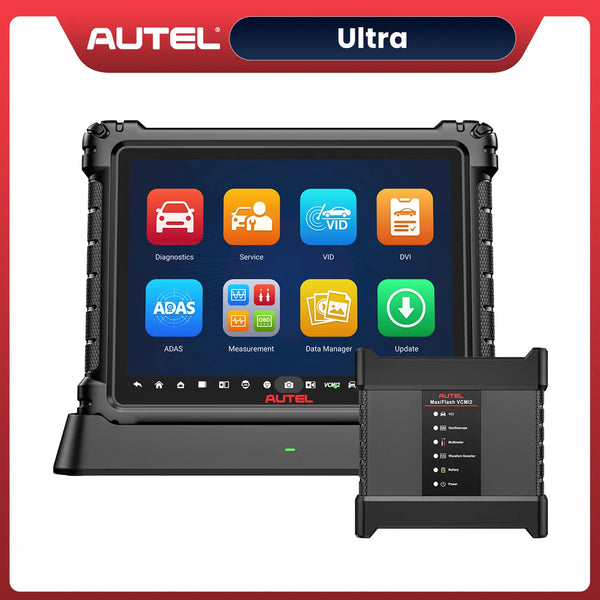
Before opening the MaxiScope application, connect the MP608 to a compatible Autel MaxiSys tablet using the supplied Autel USB Cable V2. The manual specifically says the MaxiScope app works only with Autel Android tablets and is not supported on other Android tablets. Compatible examples include Autel MaxiSys MS909S2, MS909, MS909EV, MS909CV, Ultra ADAS, MS908S3, MS906 MAX, MS908S II, MS908S Pro II, MS906 Pro, MS906 Pro-TS, and MS906 Pro2-TS, with more models possibly supported through future updates.
After connecting the USB cable, watch the oscilloscope LED. The MP608 may illuminate red during self-test and should turn green when communication with the tablet is established. If communication fails, confirm that the supplied USB cable is fully seated, restart the tablet if needed, and reconnect the scope.
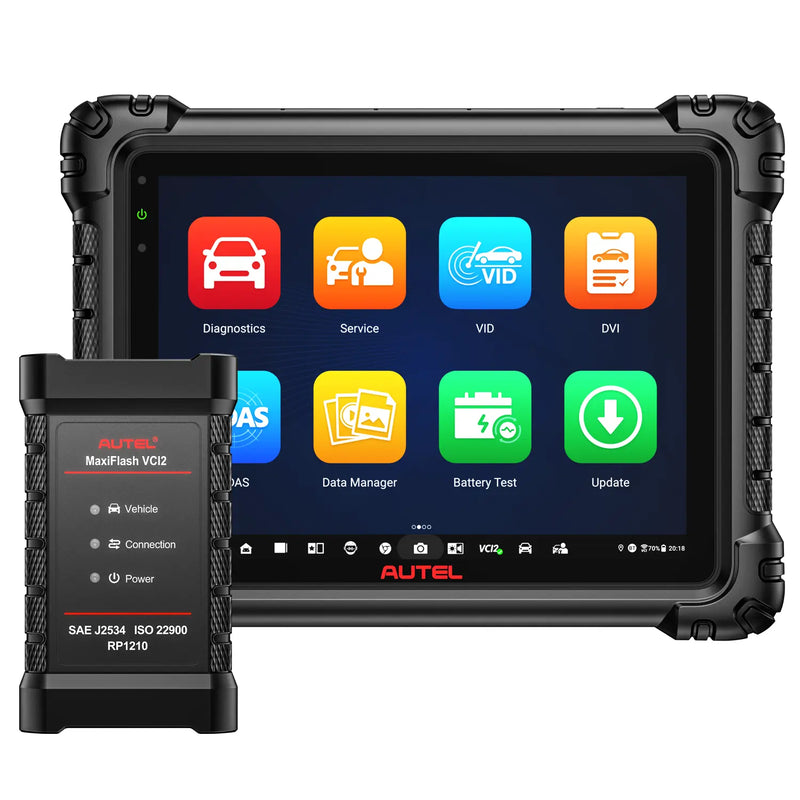 $300 OFF
Autel MaxiSys MS909 S2
$3599.00
2026 Autel Intelligent Diagnostic Scanner with AI, Topology 3.0, Enhanced PID Analysis & 48+ Service Functions
2. Attach the Correct Test Leads or Probes
The MP608 has four input channels, labeled A, B, C, and D, plus a ground terminal. Choose the accessory that matches the circuit you are testing. Scope test leads and back-pinning probes are suitable for many sensor and signal checks. Alligator clips or dolphin clips can be used on exposed terminals. For ignition testing, use the proper ignition pickup or COP-related accessory. For current measurement, optional AC/DC current clamps can be used.
Use only approved or supplied cords and probes. This is not just a warranty point. Poor leads, weak ground connections, or incorrect polarity can create distorted waveforms and misleading results. Start with a clean ground, make sure the probe tip contacts the signal wire securely, and keep test leads away from ignition components, alternators, relays, electric motors, and other noise sources when possible.
3. Open MaxiScope and Choose a Test
On the MaxiSys tablet, tap the MaxiScope application. If the MP608 is not connected, the app may offer demo mode. For real vehicle testing, connect the unit first, then open the app and select the required testing option.
For many technicians, the fastest starting point is the Presets menu. The Presets function provides guided setup information for common automotive tests. When a preset is selected, reference information and recommended parameters, such as voltage range and time divisions, can be loaded automatically. This is useful when checking common components such as sensors, actuators, ignition circuits, and current or voltage patterns.

Choose Preset Menu
If you already know the circuit behavior you want to inspect, you can set up the scope manually. Select the active channel, choose the correct probe setting, adjust voltage range and coupling, then set the time base so the waveform is easy to read.
4. Use Auto Scale, Time Base, and Voltage Range
Auto Scale is one of the quickest ways to get a readable trace. It adjusts the amplitude range so the waveform fits the screen. This is especially helpful when you are not sure of the signal size. After the waveform appears, refine the settings manually if needed.
The time base controls how much time is shown across the screen. A fast signal needs a shorter time base; a slow-changing sensor may need a longer one. The manual notes that when the time base is set to 200 ms/div or higher, the oscilloscope switches to continuous mode, updating the trace as capture progresses. For crank, cam, injector, ignition, CAN, or PWM signals, correct time base selection is often the difference between a useful waveform and a confusing line.
5. Set Triggers for Stable Waveforms
A trigger tells the oscilloscope when to capture or stabilize a waveform. The Autel MP608 supports common trigger options such as edge triggering, where capture begins when voltage rises above or falls below a threshold. The manual lists trigger modes including None, Auto, Repeat, and Single. Auto is useful for general viewing, Repeat is useful when you only want the scope to display after a valid trigger event, and Single is useful for capturing one event and stopping.
For example, if you are checking a crankshaft sensor, you can trigger on the rising or falling edge of the signal. If you are looking for an intermittent dropout, Single or Repeat mode can help catch the event instead of letting it scroll past unnoticed.

Autel MP608 Trigger Mode Screen
6. Read Measurements and Use Rulers
The MP608 can display measurement values such as maximum, minimum, peak-to-peak voltage, amplitude, period, frequency, duty ratio, pulse width, RMS, DC average, rise time, and fall time. These readings save time because you do not need to estimate everything visually from the grid.
Measurement rulers are also useful when comparing timing between two channels. For example, you can place one channel on a crank sensor and another on a cam sensor, then use rulers to compare synchronization. This is one of the main advantages of a 4-channel scope: it lets you see relationships between signals instead of testing each circuit in isolation.
7. Save, Review, and Compare Waveforms
The File menu allows you to save, open, print, delete, and manage waveform data. The Autel MP608 Oscilloscope also includes a waveform buffer, which stores captured waveform frames for playback. You can move to the previous or next waveform in the buffer to review what happened during the test.
The Waveform Library is another practical feature. Local waveforms are stored on the tablet, while the online waveform library allows searching and loading reference waveforms. A saved waveform can help document a repair, compare before-and-after results, or support a customer explanation. When used properly, the scope becomes not only a diagnostic tool but also a record of evidence.

Autel MP608 Waveform Library
8. Common Workflow for a Real Test
A practical MP608 workflow looks like this: connect the scope to the MaxiSys tablet, connect Channel A to the signal wire and ground securely, open MaxiScope, choose a preset or manual setup, press Start, use Auto Scale, adjust time base and voltage range, add a trigger if the waveform is unstable, turn on measurements, then save the waveform once the signal is clear.
For more advanced checks, add channels B, C, and D to compare related circuits. You might compare cam and crank signals, injector control and ignition timing, throttle position signals, or CAN high and CAN low lines. The goal is not simply to make a waveform appear. The goal is to capture a waveform that answers the diagnostic question.
Safety Tips Before Testing
Always follow vehicle manufacturer test procedures and the safety instructions in the MP608 manual. Do not use the oscilloscope in wet or damp environments, or around explosive gas or vapor. Do not connect the scope ground to an electrical power source. Avoid using damaged cables or probes, and do not disassemble the oscilloscope. For battery voltage or high-energy testing, use the correct rated accessories and safe methods.
Used carefully, the Autel MP608 gives technicians a clearer view of vehicle electrical behavior. It helps confirm faults, avoid unnecessary parts replacement, and produce diagnostic evidence that a scan tool alone cannot provide.
 $50 OFF
Autel MaxiScope MP608
$709.00
Autel Professional 4-Channel Automotive Oscilloscope with AI-Assisted Waveform Diagnostics
FAQs About Using Autel MP608
What is the Autel MP608 used for?
The Autel MP608 is used to view and analyze automotive electrical waveforms, including sensor signals, actuator control signals, ignition patterns, current waveforms, and communication signals.
Can the Autel MP608 work with any Android tablet?
No. The MaxiScope app is designed for compatible Autel Android MaxiSys tablets and is not supported on general Android tablets.
How do I start using the MP608?
Connect the MP608 to a compatible MaxiSys tablet with the supplied USB cable, attach the correct test lead or probe to the input channel, open the MaxiScope app, and select a preset or manual test setup.
What should I do if the waveform looks noisy or distorted?
Check that the supplied probes are used, the probe polarity is correct, the signal and ground connections are clean and secure, and the test leads are kept away from components that may induce electrical noise.
Can I save MP608 waveform data?
Yes. The File menu and waveform library functions allow users to save, open, print, upload, and review waveform data for later comparison or documentation.


Leave a comment