




![IM608 PRO II Full Kit<br>[2-Year Free Update]](http://www.obdprice.com/cdn/shop/files/Autel_IM608S_II_Full_Kit_1_600x600.webp?v=1755662636)

![IM508S PRO<br>[2-Year Free Update]](http://www.obdprice.com/cdn/shop/files/Autel_MaxiIM_IM508S_Pro_600x600.webp?v=1755662755)
![IM508S<br>[2-Year Free Update]](http://www.obdprice.com/cdn/shop/files/AUTEL_MAXIIM_IM508S_600x600.webp?v=1755662895)


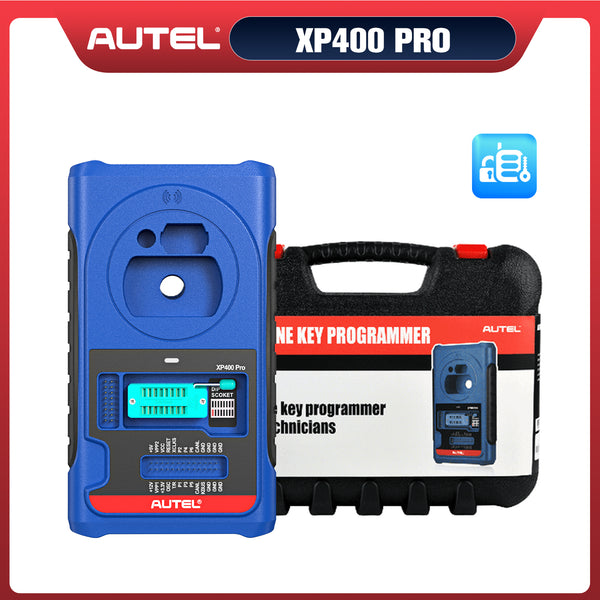


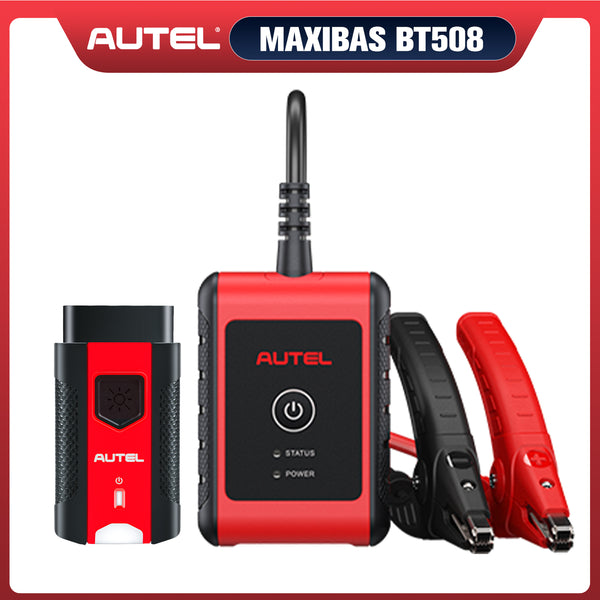
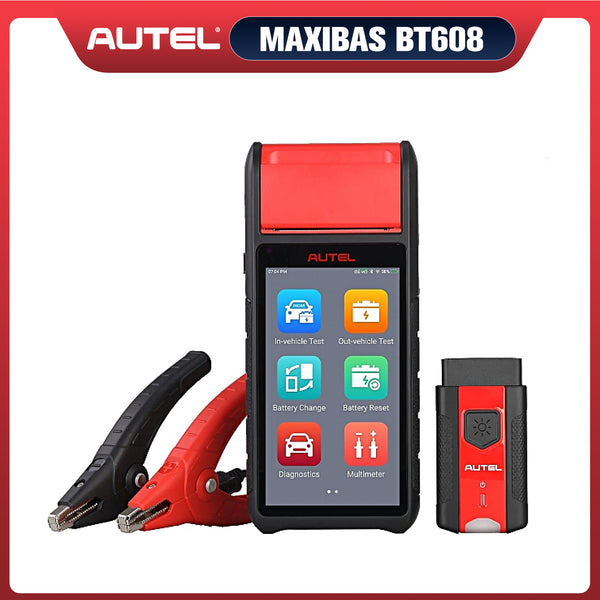



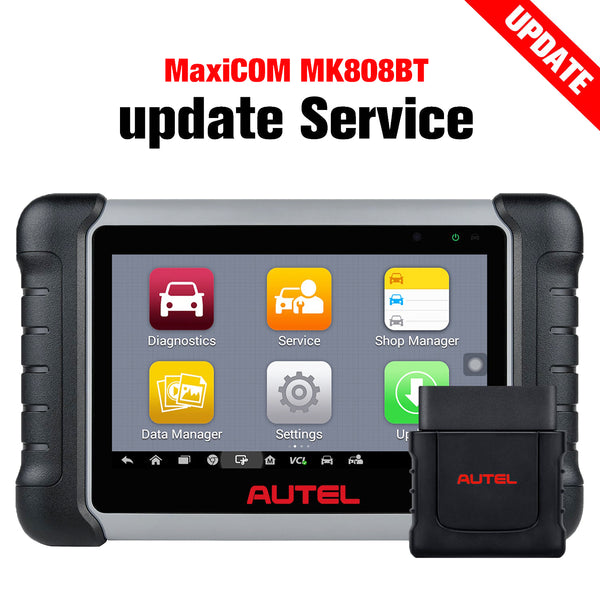
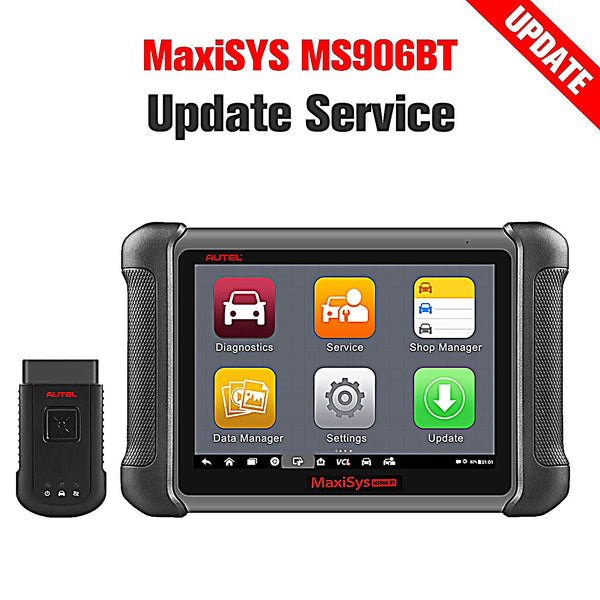


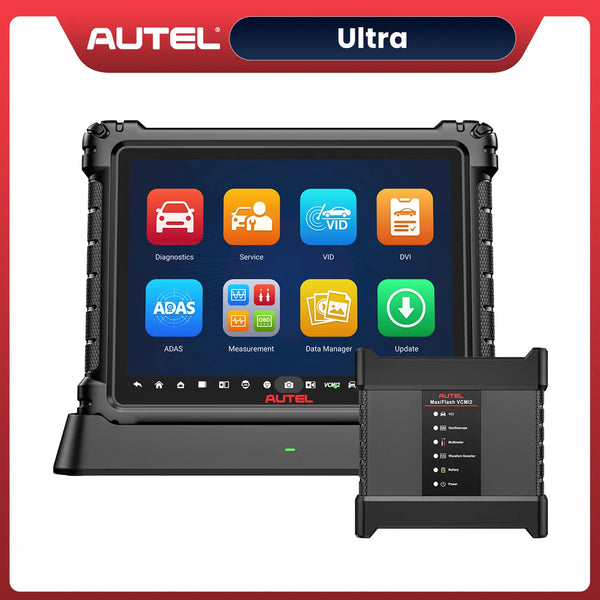
Many Autel scanners support Wi-Fi printing, allowing technicians to print diagnostic reports wirelessly without using a computer or USB connection. This feature is widely used in professional repair shops and by mobile technicians to quickly generate printed vehicle health reports, pre-scan results, and post-scan documentation.
This complete guide provides a general overview of how to set up and use Wi-Fi printing on most Autel diagnostic tablets, along with best practices and troubleshooting tips.

Benefits of Wi-Fi Printing on Autel Scanners
Wi-Fi printing helps streamline daily operations in automotive repair environments by allowing you to:
- Print diagnostic and vehicle health reports instantly
- Eliminate the need for USB cables or external computers
- Share professional printed reports with customers
- Improve workflow efficiency in busy shops
- Maintain printed service documentation for records and compliance
- Support mobile diagnostic and inspection services
Wireless printing turns your Autel scanner into a complete diagnostics and reporting solution.
Autel Scanners That Commonly Support Wi-Fi Printing
Wi-Fi printing is available on many Autel Android-based diagnostic tablets, including (but not limited to):
- Autel MaxiSys series
- Autel MaxiCOM series
- Autel MaxiPRO series
- Autel MaxiCheck series
Exact menu names and availability may vary slightly depending on model and software version.
What You Need Before Setting Up Wi-Fi Printing
Before enabling Wi-Fi printing, make sure the following requirements are met:
- A Wi-Fi-enabled printer (inkjet or laser)
- An active wireless network
- Your Autel tablet connected to the same Wi-Fi network as the printer
- The printer powered on and ready
- Updated Autel tablet system software (recommended)
Using the same network is essential for automatic printer discovery.

Autel Scanners Wi-Fi Printing
General Steps to Print via Wi-Fi on Autel Diagnostic Tablets
The following steps apply to most Autel tablets that support Wi-Fi printing. Menu names may vary slightly by model.
Step 1: Enable Wi-Fi Printing
On your Autel scanners, go to:
Settings → Print Settings → Print via Wi-Fi
Make sure Wi-Fi is turned on and the tablet is connected to your wireless network.
This allows the system to scan for available network printers.

Step 2: Open the Report or File You Want to Print
After completing diagnostics:
- Open the diagnostic report, vehicle health report, or saved inspection file
- Tap the Print button or printer icon on the top toolbar
This will open the print dialog.

Step 3: Search for Available Printers
In the print screen:
- Tap Select a printer
- The tablet will automatically scan for wireless printers on the same network
This may take a few seconds depending on network conditions.

Step 4: Select Printer and Start Printing
Once printers are detected:
- Choose your preferred printer from the list
- Adjust print options if available (copies, layout, paper size, etc.)
- Tap Print to start wireless printing
Your report should begin printing immediately.

Common Wi-Fi Printing Issues and Solutions
If your printer does not appear or printing fails, try these troubleshooting steps:
Printer Not Found
- Confirm both devices are on the same Wi-Fi network
- Disable guest Wi-Fi if your shop uses multiple SSIDs
- Restart the printer and Autel scanners
Printing Fails or Stops
- Check printer paper, ink/toner, and error lights
- Verify strong Wi-Fi signal
- Move devices closer to the router
Inconsistent Printer Detection
- Assign a static IP to the printer (if supported)
- Update printer firmware
- Update Autel scanners system software
Best Practices for Shops and Mobile Technicians
To ensure reliable daily printing:
- Use a dedicated shop Wi-Fi network
- Keep one or two primary printers configured for Autel reports
- Test printing at the start of each workday
- Save digital copies of reports even when printing
- Standardize report formats for customer documentation
These practices help reduce downtime and improve professionalism.

Important Notes
- Not all Autel models support Wi-Fi printing
- Menu names and layout may vary by software version
- Some printers may require additional setup on the network
- Corporate or secured networks may block device discovery
Always refer to your specific Autel model documentation for exact compatibility.
Final Thoughts
Wi-Fi printing is a powerful feature available on many Autel scanners, helping technicians quickly produce professional printed diagnostic reports without extra hardware. With proper network setup and best practices, wireless printing can significantly improve workflow efficiency and customer communication.
By following this general guide, you can successfully configure and use Wi-Fi printing on most Autel diagnostic scanners.


